



Before You Start: Set Up the amCharts MCP Server
If you’re using an AI coding assistant (Claude, Cursor, Windsurf, or any tool that supports MCP), the very first thing you should do is install the amCharts 5 MCP server. It gives your AI direct access to the full amCharts documentation, code examples, and class references — so it can look things up instead of guessing.
Install it globally:
npx @amcharts/amcharts5-mcp initThat’s it. One command. It registers the MCP server with your tool automatically.
For manual setup, configuration options, or more details:
The Rule
Tell your AI this, and make it stick — put it in your system prompt, your
CLAUDE.md, your project instructions, wherever your tool reads its guidelines from:“For all amCharts-related code, use the MCP server as your single source of truth. Before using any setting, property, event, or method — look it up in the class reference via MCP. Do not guess. Do not rely on training data. If you’re unsure whether something exists, verify it before writing it.”
AI without a reference hallucinates. AI with a reference builds working charts. That’s the entire difference.
And if you’re using TypeScript (which you should — amCharts 5 ships full type definitions), always compile the generated code. The type checker will catch wrong setting names, missing properties, and bad method signatures that even the MCP lookup might miss.
What We’re Building
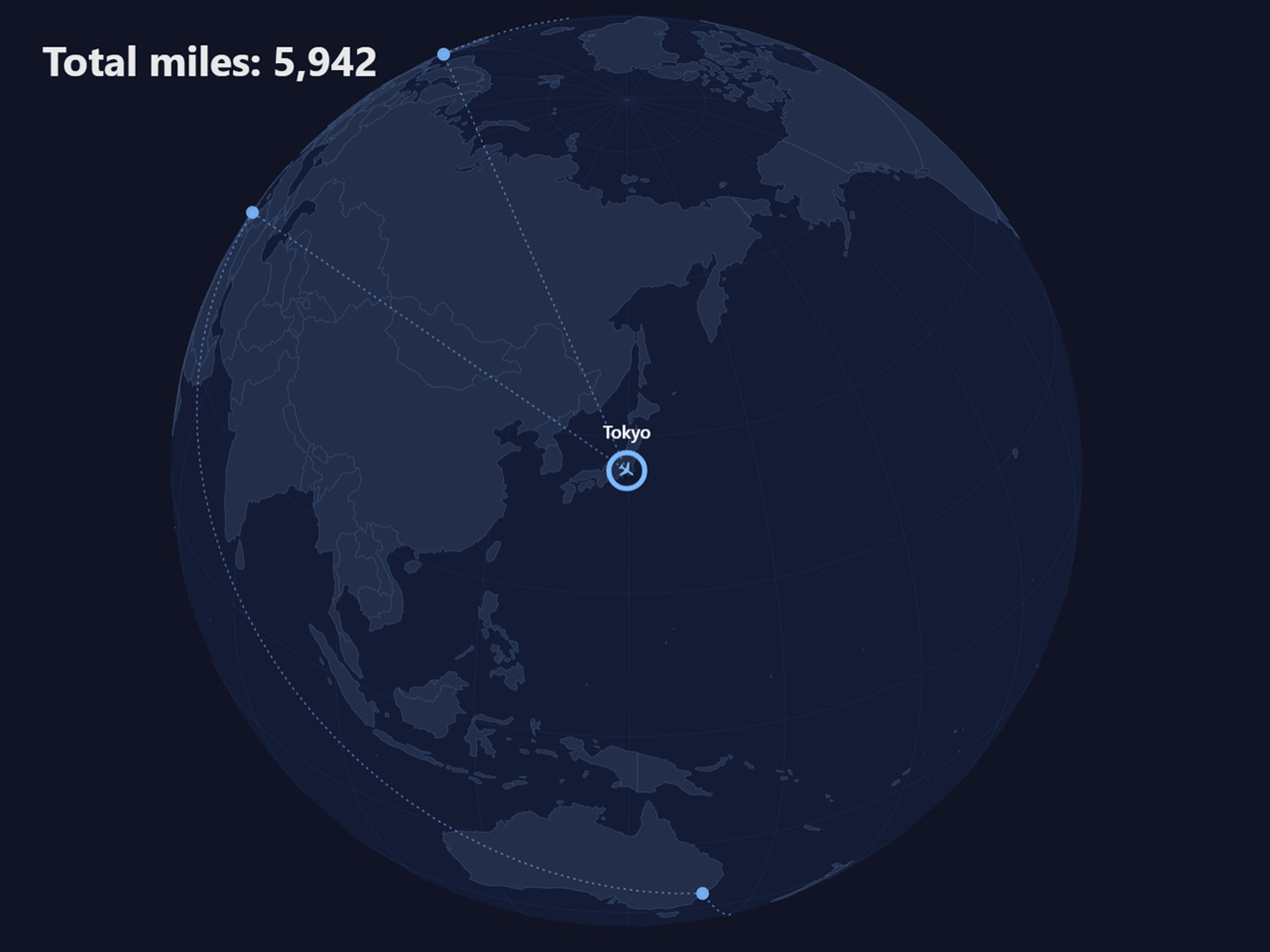
We’re going to build an animated globe, step by step, using nothing but natural language prompts. Each step builds on the previous one — starting from a simple rotating globe with city markers and ending with a polished animation featuring eased flight paths, pulsing plane icons, and city labels that fade in and out on cue.
At each step, you’ll see the exact prompt that was given to the AI, and the result as a live, interactive demo you can play with.
A note: if you try the same prompts, your results will differ. Working with AI is not an exact science — the output depends on the model, your setup, the conversation history, and sometimes, apparently, on weather conditions or the mood of your AI. That’s fine. The prompts are a starting point, not a recipe.
The Steps
Prompt #1
A rotating globe with cities and dashed connection lines:
Make a globe showing one famous city per continent, marked with circles. Connect them with dashed lines. The globe should auto-rotate, and let the user rotate it with mouse or touch.
Prompt #2
Add a plane that follows the lines, globe tracks the plane:
Add a plane icon that follows the lines between cities. The globe should rotate to keep the plane always at the center.
Prompt #3
Eased flight, scale pulse, city pauses, and rotation transition:
Fly the plane with easing — start and end each segment slower. The plane should start small, grow bigger mid-segment (as if gaining altitude), then shrink back when approaching the next city. Pause briefly when it reaches a city. Before takeoff, animate the rotation to face the new direction, then continue flying.
Prompt #4
City bullet animation and label fade on arrival/departure:
When the plane lands on a city, animate the city bullet bigger — make its fill transparent and show only the stroke (same color as the fill, 4px width). This way the plane won’t disappear into the city dot. Hide city labels by default — only fade them in when the plane is near the city, and fade them out when the plane leaves.
Prompt #5
Final touches — smooth labels, mileage counter, plane shadow:
Final touches: remove the background from city labels and make them bigger. Use a more interesting label animation. Reduce the dashed line gaps and stroke length. Add a large ‘Total miles: XXXX’ label in the top-left — the number should increase in real time as the plane flies, based on actual mileage. Show a shadow under the plane — the shadow distance should increase mid-segment (higher altitude) and decrease near cities.
Takeaways
Five prompts. Each one a plain English sentence describing what should happen next. The MCP server gave the AI access to real documentation — so instead of hallucinating API calls, it looked them up and got them right.
The key lesson: an AI with a reference is a different tool than an AI without one. The MCP server is free, takes one command to install, and turns vague guesses into working code. If you’re building with amCharts and AI, start there.